
This channel is on the Full plans, not on Lite. See the plans
Shopee
Connect a Shopee shop so buyer chats land in the shared inbox next to your other channels, and answer them from there.
Before you start
- A Shopee seller account with a shop, and a developer account at open.shopee.com registered as a seller. Shopee reviews a new account, which can take a few working days.
- A Shopee Open Platform app of the Seller In House System type. Every shop uses its own app, because Shopee gives the chat API to that kind of app.
- The Live Partner ID and Live Partner Key of that app, shown after Shopee approves it.
Shopee only accepts calls from addresses you whitelist in the app. KonekSip shows you the address to whitelist on the channel page.
Create the Shopee app
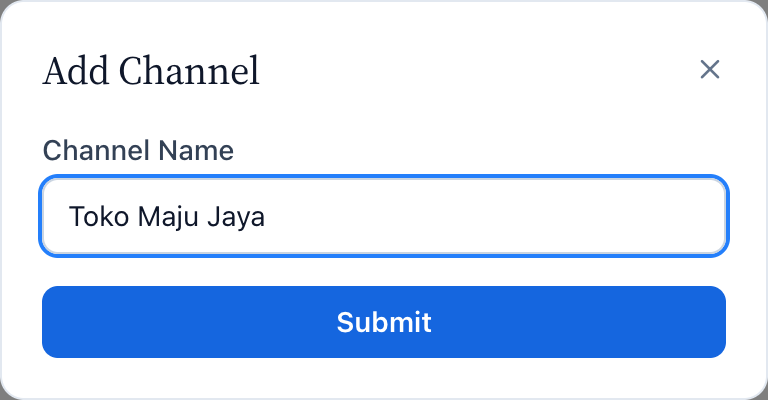
- In KonekSip open Platforms → Shopee, press Add Channel, type a name (only your team sees it) and press Submit. Then open the new card with Detail.
- The page shows three values to enter in your Shopee app: the Redirect URL, the Live Push URL and the IP address to whitelist. Each has a copy button.
- In the Shopee Open Platform console create an app of the Seller In House System type. Set the Redirect URL, turn on the chat push and set the Live Push URL, and add the IP address to the IP whitelist.
- Press Go Live and wait for Shopee to approve the app. When it is online, open the app and copy its Live Partner ID and Live Partner Key.

Connect in KonekSip
- On the channel page enter the Live Partner ID and the Live Partner Key, and press Save & Authorize.
- You are sent to Shopee. Log in to Seller Center with the account of the shop and press Confirm Authorization.
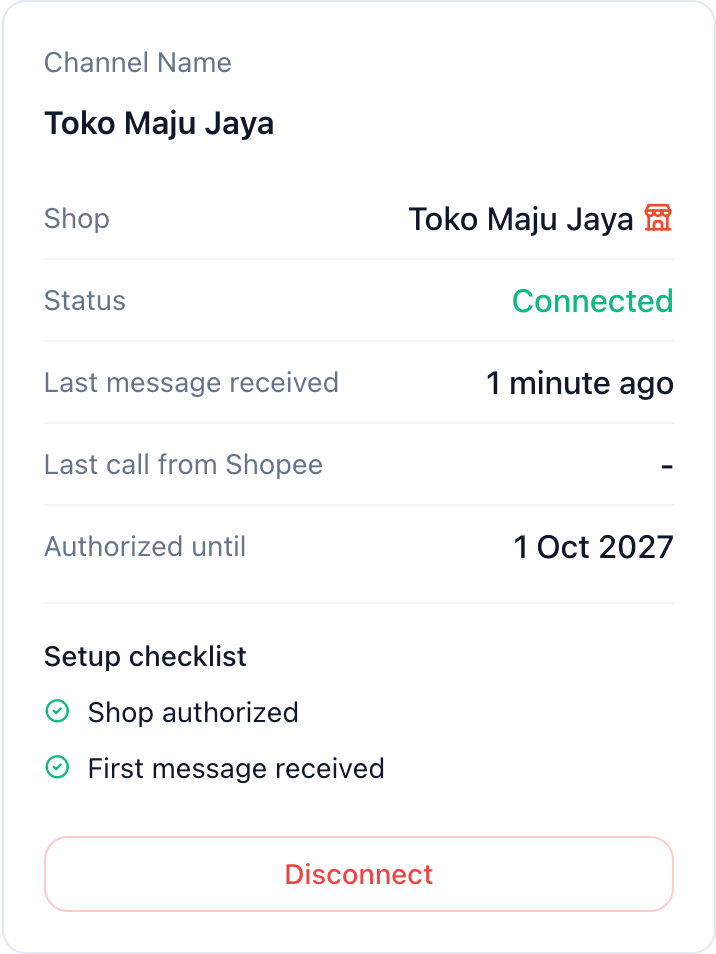
- Shopee sends you back to KonekSip. The page now shows the shop name, the status Connected and the date the authorization ends.
- Ask someone to send a chat to your shop from the Shopee app. It appears in the Inbox, named after the buyer.
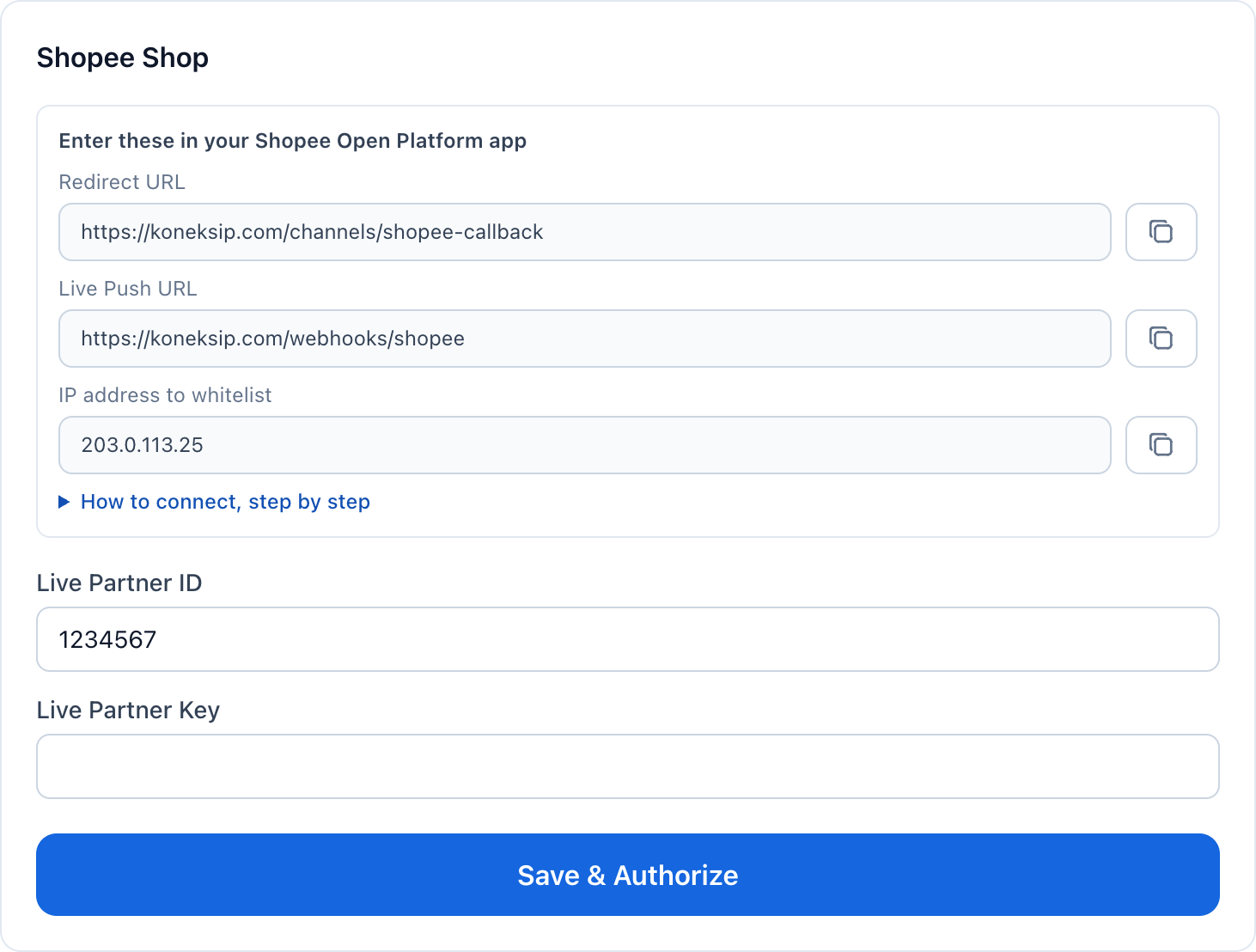

The Partner Key is saved and never shown again. Leave the field empty when you save again to keep it.

What works
- Buyer chats arrive in the Inbox and can be assigned, given a priority and answered like any other conversation. Auto-replies and AI replies work too.
- You reply with text. Images, stickers, products and orders from buyers show as a short note with a link when there is one. Sending images or files is not available.
- Shopee decides when a seller may write to a buyer, for example it stops new messages after the buyer has not answered for a while.
- Campaigns, phonebooks and templates are WhatsApp only. The API accepts text for a Shopee channel with
POST /api/messages, using the buyer id as the receiver.
Renew the authorization
Shopee authorizes a shop for one year. The channel page shows the date. Before it ends open the page and press Save & Authorize again, log in to Seller Center and confirm. The channel, its chats and its API key stay as they are.
Troubleshooting
| What you see | Likely cause | What to do |
|---|---|---|
| Shopee: error_sign or wrong sign | The Partner ID or Partner Key is wrong, or the key belongs to a test app. | Copy the Live Partner ID and Key again and save. Leave no spaces around them. |
| IP not whitelisted or a request denied by Shopee | The IP address of KonekSip is not in the whitelist of the app. | Add the address shown on the channel page to the IP whitelist of the app and submit it again. |
| Shopee does not return to KonekSip, or the page says the authorization was cancelled | The Redirect URL of the app is different from the one shown, or the shop was not chosen. | Set the Redirect URL exactly as shown, and authorize with the account of the shop, not a sub-account. |
| This Shopee shop is already connected to a channel. | The same shop is on another channel. | Disconnect or delete the other channel first. |
| Connected, but no chats arrive | The Live Push URL or the chat push is not set in the Shopee app. | Set the Live Push URL as shown, turn on the chat push and send a test chat. |
| Status turns Disconnected with authorization is invalid or has expired | The one-year authorization ended, or the shop removed the app. | Press Save & Authorize and confirm again. |
Need Help?
If you have questions or need assistance, our support team is here to help.