Connect a WhatsApp number to the shared inbox and the API. Pick the connection type first, then follow only its steps.
Choose a connection type
A WhatsApp channel uses one of two connection types. Both use the same inbox and the same /api/* endpoints, so your integration code stays the same. A few endpoints only work on one type and say so: edit and delete are Unofficial only, lists and templates are Official only, and buttons work on both with different limits.
| Feature | Official | Unofficial |
|---|---|---|
| How it connects | No QR - log in with Facebook and pick your WhatsApp Business account and number | Scan a QR code with your personal/business WhatsApp app (multi-channel WhatsApp Web protocol) |
| Backed by Meta | Yes - official Meta Cloud API | No - runs over the unofficial WhatsApp Web protocol |
| Used together with the WhatsApp Business app | Yes, through coexistence: the same number works in the app and in the inbox (see below) | Yes, the app is linked as a device |
| Free-form messages | Only within Meta's 24-hour customer service window, or via a pre-approved message template outside it | Always allowed |
| Groups | Not supported by Meta's API | Supported |
| Media sending | Public URL only | Public URL or local file |
| Interactive buttons | Supported via type: "buttons": up to 3 quick replies, or a single URL button. Only within the 24-hour window, use an approved message template with buttons outside it |
Supported via type: "buttons" (quick reply, URL, call, copy code) |
| Lists | Supported via type: "list" (up to 10 rows). Only within the 24-hour window |
Not available |
| Campaigns / Broadcast | Supported with approved message templates (choose the Template message type) | Supported |
Not sure? Use Official, log in with Facebook for a business number you want to keep safe long term. Use Unofficial (QR) to start in two minutes with the number you already use, accepting the risk below.
Unofficial: connect with a QR code
Unofficial connections use the WhatsApp Web protocol. It is not an official Meta integration, and WhatsApp can restrict numbers it considers abusive. Avoid bulk or unsolicited messages on this type.
Step 1: Add the channel
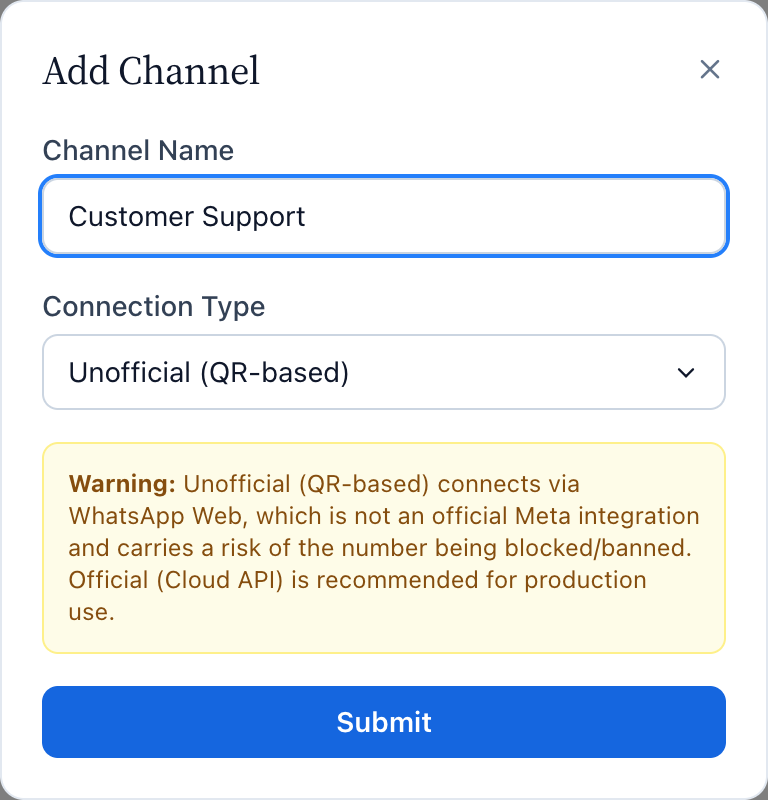
- In the dashboard open Platforms → WhatsApp and press Add Channel.
- Type a Channel Name (only your team sees it), choose Unofficial (QR-based) as the Connection Type and press Submit.

Step 2: Start the session
- The new channel appears as a card. Press QR Code to open its page.
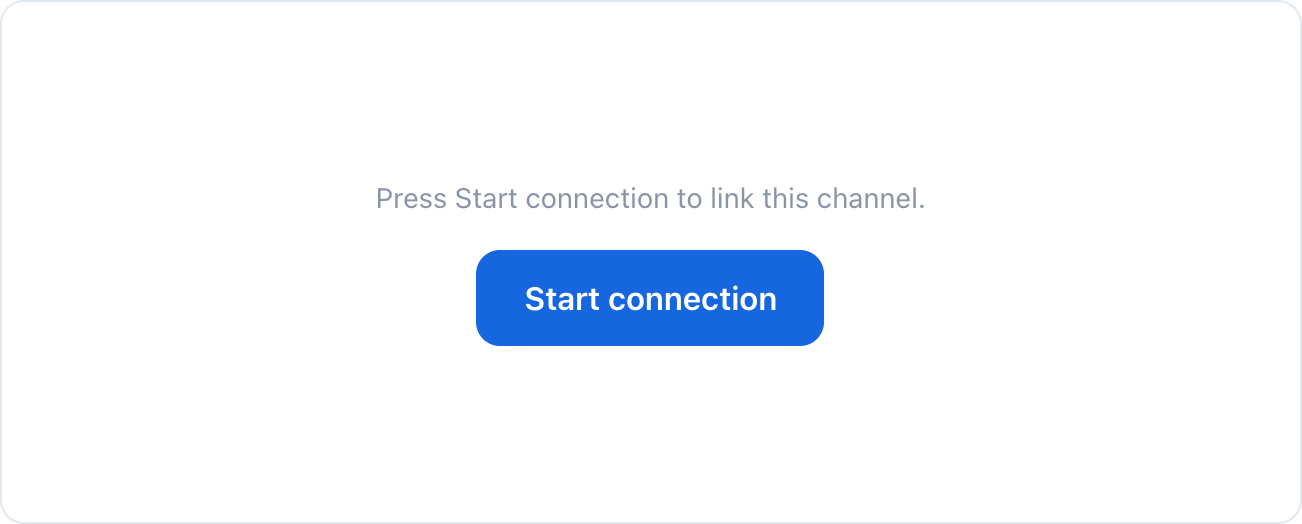
- Press Start connection. After a few seconds a QR code appears. If the page says the connection was lost, wait a minute and try again.

Step 3: Scan the QR code
- On your phone open WhatsApp. On Android tap the ⋮ menu → Linked devices. On iPhone open Settings → Linked devices.
- Tap Link a device and scan the QR code on the screen. The code expires after a short time. If it does, press Start connection again for a new one.
- When it works, the card shows Connected and the channel page shows the WhatsApp number. You can set the display name, status and profile picture on the same page.
WhatsApp disconnects linked devices when the phone has not been used for about 14 days. If the channel shows Disconnected, open its page and scan again.
To disconnect on purpose, use the Disconnect button on the channel page. Deleting the channel from the card also ends the session.
Official: log in with Facebook
This is the quickest way to connect an Official number. You log in with Facebook, pick your WhatsApp Business account and number in a Meta window, and the channel is ready. There is nothing to copy or paste. If your workspace does not show this option, the official connection is not available yet: use the QR code connection or contact support.
Before you start
- A Meta business portfolio (Business Manager) where you can manage the WhatsApp Business account. Meta reviews the display name of a number, so use your business name, and it may ask you to verify the business before you can message more customers.
- A phone number that Meta can verify by SMS or call, and that is not active in WhatsApp or the WhatsApp Business app. To keep the app on the number, use the option below instead.
- A payment method on the WhatsApp Business account in Meta Business Suite, because Meta charges for some message types.
Connect a number
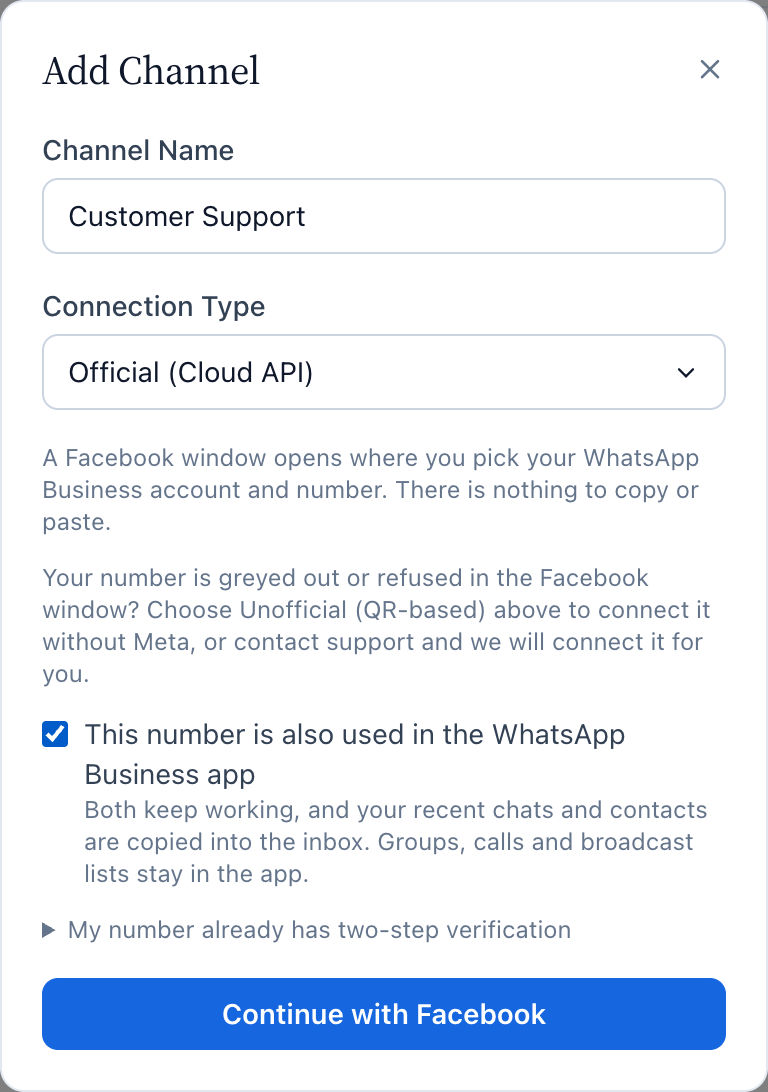
- Open Platforms → WhatsApp and press Add Channel.
- Type a Channel Name and choose Official, log in with Facebook as the Connection Type.
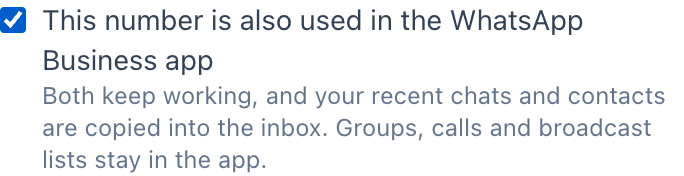
- Tick This number is also used in the WhatsApp Business app only if you want to keep using the app on the same number (see below).
- Press Continue with Facebook, log in and choose your business account and number in the window that opens. When it closes, the channel appears with the status Connected.

To pause a number, press Disconnect on its channel page: it stops sending and receiving, your chats stay, and Reconnect with Facebook brings it back. To remove it for good, delete the channel from the channel list.
Keep using the WhatsApp Business app on the same number (coexistence)
With the option ticked, the number works in the inbox and in the WhatsApp Business app at the same time (Meta calls this coexistence). It needs WhatsApp Business app 2.24.17 or later on the phone.
To turn it on, tick This number is also used in the WhatsApp Business app in the Add Channel form, before you press Continue with Facebook.

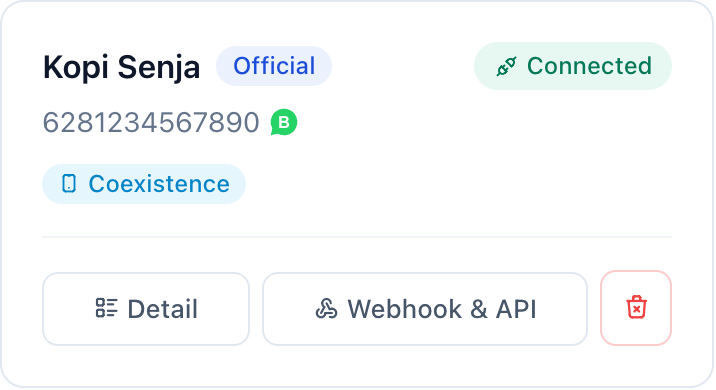
A channel made this way shows a Coexistence label next to Official on its card, so you can see at a glance which numbers are also used in the app.

To turn it on, tick This number is also used in the WhatsApp Business app in the Add Channel form, before you press Continue with Facebook.
A channel made this way shows a Coexistence label next to Official on its card, so you can see at a glance which numbers are also used in the app.
- What you send from the app appears in the inbox, and what customers send reaches both.
- Your recent chats (up to about 6 months) and your contacts are copied into KonekSip once, right after you connect. Meta only allows this copy at that moment.
- Messages you send from the app stay free and do not affect Cloud API conversation windows or pricing. Messages sent through KonekSip follow Meta's Cloud API pricing.
- Not available on a shared number: groups, calls, broadcast lists, disappearing messages, view-once media and live location. Throughput is fixed at 20 messages per second.
- Connecting unlinks the devices linked to the app, and you link the ones you still use again. Meta can disconnect the number if the phone app is not opened for about 14 days.
- Meta judges whether a number is eligible from its activity in the WhatsApp Business app. If Meta refuses with a message that the number is not eligible yet, use the app for longer and try again. Meta does not say how long.
- To disconnect from the app side, use Settings → Account → Business Platform → Disconnect Account. The channel then shows as disconnected.
Moving a number from another provider
- Check two-step verification. If the number has a PIN with the old provider, either turn it off in WhatsApp Manager (the API cannot do it) or keep the PIN at hand.
- Connect as above. If Meta answers that the PIN is wrong, open My number already has two-step verification in the form, enter the 6-digit PIN and connect again. KonekSip does not store it.
- Meta moves the number to the new account. Meta copies eligible message templates too, so check them under Templates.
When KonekSip registers a number that has no PIN yet, it sets one that you do not need to know. To move the number away later, turn two-step verification off in WhatsApp Manager.
A number that is active in the WhatsApp app has to be freed first: in the app open Settings → Account → Delete my account and wait up to 3 minutes. The chats in that app are lost. For the WhatsApp Business app, use the option above to keep your chats.
If the connection drops or the import stalls
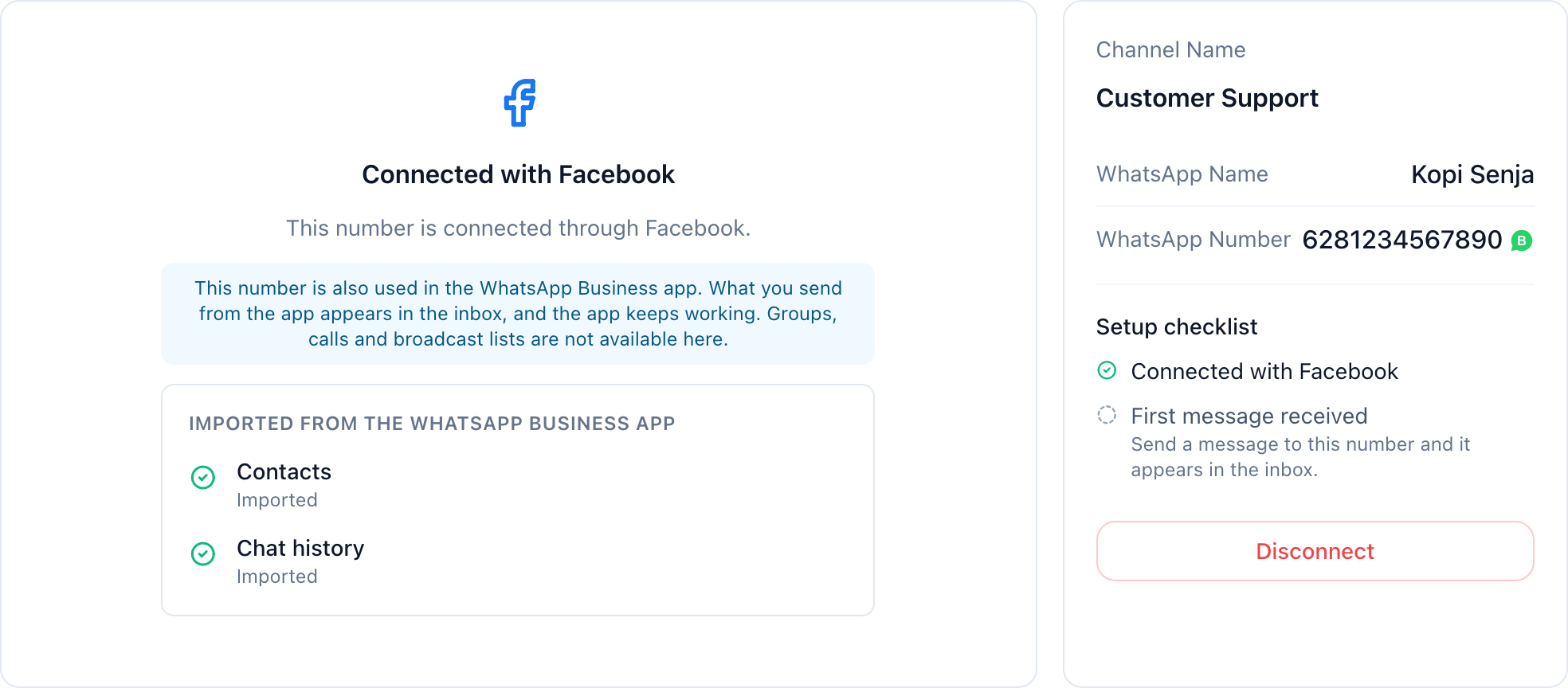
The channel page shows why a channel is disconnected. Press Reconnect with Facebook, choose the same number and the channel is back with its chats, customers and API key. Choosing another number is refused.
For a number that is also used in the app, the same page shows the import of Contacts and Chat history while it runs. Meta offers the import only once per connection and within 24 hours of it. If a line says Meta did not send it, or that chat history was turned off in the app, reconnect to ask again.

Messages from customers who use a WhatsApp username arrive without a phone number. They appear in the inbox under their username, and you can reply as usual. The API describes the identifier in Conventions.
After connecting
The 24-hour window and templates
On an Official channel you can send any text only within 24 hours after the customer's last message. Outside that window, send an approved template. Create and track them under Templates in the menu. The Inbox tells you when the window has closed.
Template categories
Each template has a category, and the price of a message follows it: Marketing (offers and promotions), Utility (updates about an order or an account) and Authentication (one-time codes). WhatsApp makes the final choice of category, and you can see it in the template list.
One-time code templates
An Authentication template sends a login or verification code. WhatsApp words the message and adds a Copy code button, so there is no text to write.
- Under Templates, press Add Official Template and choose the category Authentication.
- Choose how long the code is valid (1 to 90 minutes) and whether to add the security note (“do not share this code”), then submit it for approval.
- An authentication template cannot be edited. To change it, delete it and create a new one.
- Send it through the API with the code in
otp_code, up to 15 characters. See Send Template.
The code is not kept: the message history and the inbox show it as ******. Authentication templates are left out of the template list of the inbox and of campaigns .
API key and your own webhook
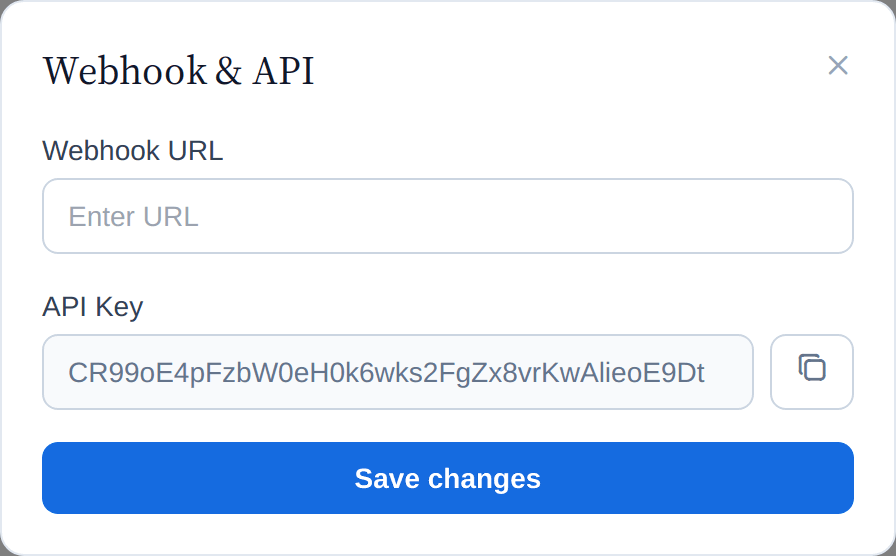
Press Webhook & API on a channel card to see its API key and to set a webhook URL that receives every incoming message on your own server. The endpoints are described in the API Reference.

Message prices
An Official number can be used in two ways. If you connect your own Meta account, Meta bills you directly and there is nothing to top up in KonekSip. If your number is managed by KonekSip, you pay for messages from a prepaid wallet in rupiah. The rest of this section is about managed numbers.
What you pay for
- You pay per message that is delivered. A message that fails is not charged.
- The price depends on the category WhatsApp gives the message (marketing, utility or authentication) and on the country of the customer.
- Replies to a customer within 24 hours: the first 1,000 messages a month for each number are free. After that they are charged at the Service price.
- Messages sent to a customer who came from a Click to WhatsApp ad or a Facebook Page button are free for 72 hours.
- Utility templates sent within 24 hours of a customer message are charged at the Utility price as WhatsApp reports it for that message.
Price per message
Prices are in rupiah and do not include VAT. VAT of 11% is added on top.
| Category | Before VAT | With VAT |
|---|---|---|
| Marketing | Rp 598 | Rp 664 |
| Utility | Rp 365 | Rp 406 |
| Authentication | Rp 365 | Rp 406 |
| Service | Rp 365 | Rp 406 |
Example: a marketing message costs Rp 598 plus Rp 66 VAT, Rp 664 in total.
Your balance
- Top up with QRIS under Billing & Subscription, then Wallet. The minimum top-up is Rp 20,000.
- Before a template is sent, the highest price for a template is set aside from your balance. When WhatsApp confirms the real category, the exact price is taken and the difference goes back to your balance.
- When the balance is not enough, the message is not sent and a campaign pauses. Top up and send again. Your balance never goes below zero.
- The same wallet pays for AI replies and conversation summaries, by the tokens they use. When the balance is too low, AI stays off.
- The Wallet page lists every movement, which you can filter by type, and what you spent this month. The top-up history shows every attempt with its status: a QR code that has not expired can be opened again with Pay now, and each paid top-up has a PDF Receipt.
Troubleshooting
| What you see | Likely cause | What to do |
|---|---|---|
| In the Meta window the number is marked Ineligible or refused ("This number can't be shared with this app") | Meta does not explain the exact cause. Its error guide for similar cases names a number that is still shared with another partner, a number still connected to a business platform in the WhatsApp Business app, or a number that is not active enough in the WhatsApp Business app. | Disconnect it from the old partner or platform (in the app: Settings → Account → Business Platform → Disconnect Account, then wait about 15 minutes) and try again. If the number is used in the WhatsApp Business app, tick the option for a number that is also used in the app. If it is still refused, use the Unofficial (QR) connection, which does not go through Meta, or contact support and our team connects it for you. |
| Disconnected, with a reason from Meta | For example the WhatsApp Business app was not opened for about 14 days, or the number was registered again on another device. | Open the channel page and press Reconnect with Facebook, then choose the same number. |
| Connected, but no incoming messages | The link with Meta was interrupted, for example the person who connected the number removed the app in their Facebook settings. | Open the channel page and press Reconnect with Facebook. If nothing arrives after that, contact support. |
| Replies fail with a message about the 24-hour window | The customer wrote more than 24 hours ago. | Send an approved template instead. |
| Unofficial: the QR code never appears | The connection could not be reached. | Wait a minute, reload the page and press Start connection again. Contact support if it keeps failing. |
| Unofficial: was connected, now Disconnected | The phone was unused for about 14 days, or the device was removed in WhatsApp. | Open the channel page and scan a new QR code. |
Need Help?
If you have questions or need assistance, our support team is here to help.