
Live chat
Put a chat widget on your website. Visitors write in it, and the messages land in the shared inbox next to your other channels.
Before you start
- A website where you can add a line of code before the closing
</body>tag, or someone who can. - A plan that includes live chat (the Full plans).
Create the channel
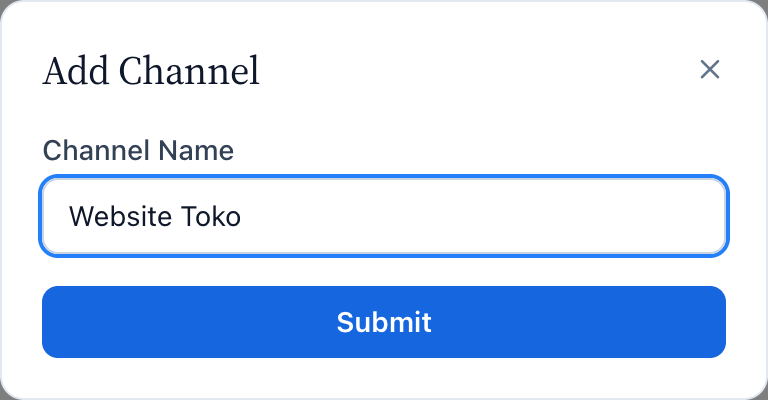
- In KonekSip open Platforms → Live chat, press Add Channel, type a name (only your team sees it) and press Submit. Then open the new card with Detail.
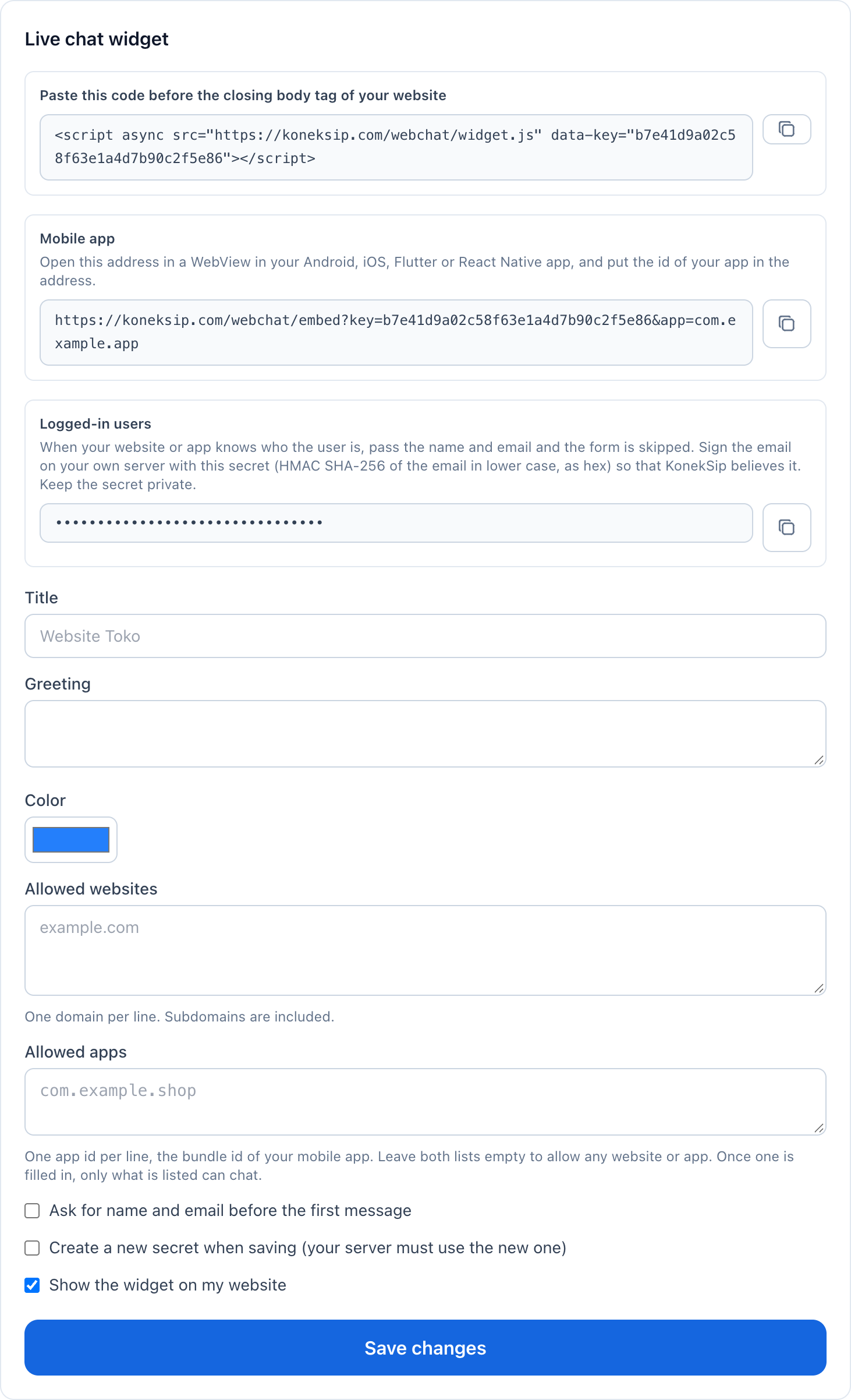
- Set the title and greeting visitors see, and pick a color.
- Under Allowed websites write the domains that may show the widget, one per line (subdomains are included). Leave it empty to allow any website.
- Tick Ask for name and email before the first message if you want to know who is writing. Make sure Show the widget on my website is ticked and press Save.


Add it to your website
Copy the code shown at the top of the channel page and paste it before the closing </body> tag of your pages. It looks like this:
<script async
  src="https://…/webchat/widget.js"
  data-key="…"></script>
Open your website. A round button appears at the bottom right. Send a message from it: the chat appears in the Inbox, and your reply shows up in the widget at once.
Single-page apps and security policies
Add the code once, to the page or layout that is always loaded. The widget loads on every page that has the code, and the chat of a visitor continues from page to page.
If your site sends a Content-Security-Policy, allow the address of the chat server (the host in the code above) for scripts and for connections, including WebSockets, and allow inline styles, because the widget draws itself with a style element:
Content-Security-Policy:
  script-src 'self' https://chat.example.com;
  connect-src 'self' https://chat.example.com wss://chat.example.com;
  style-src 'self' 'unsafe-inline'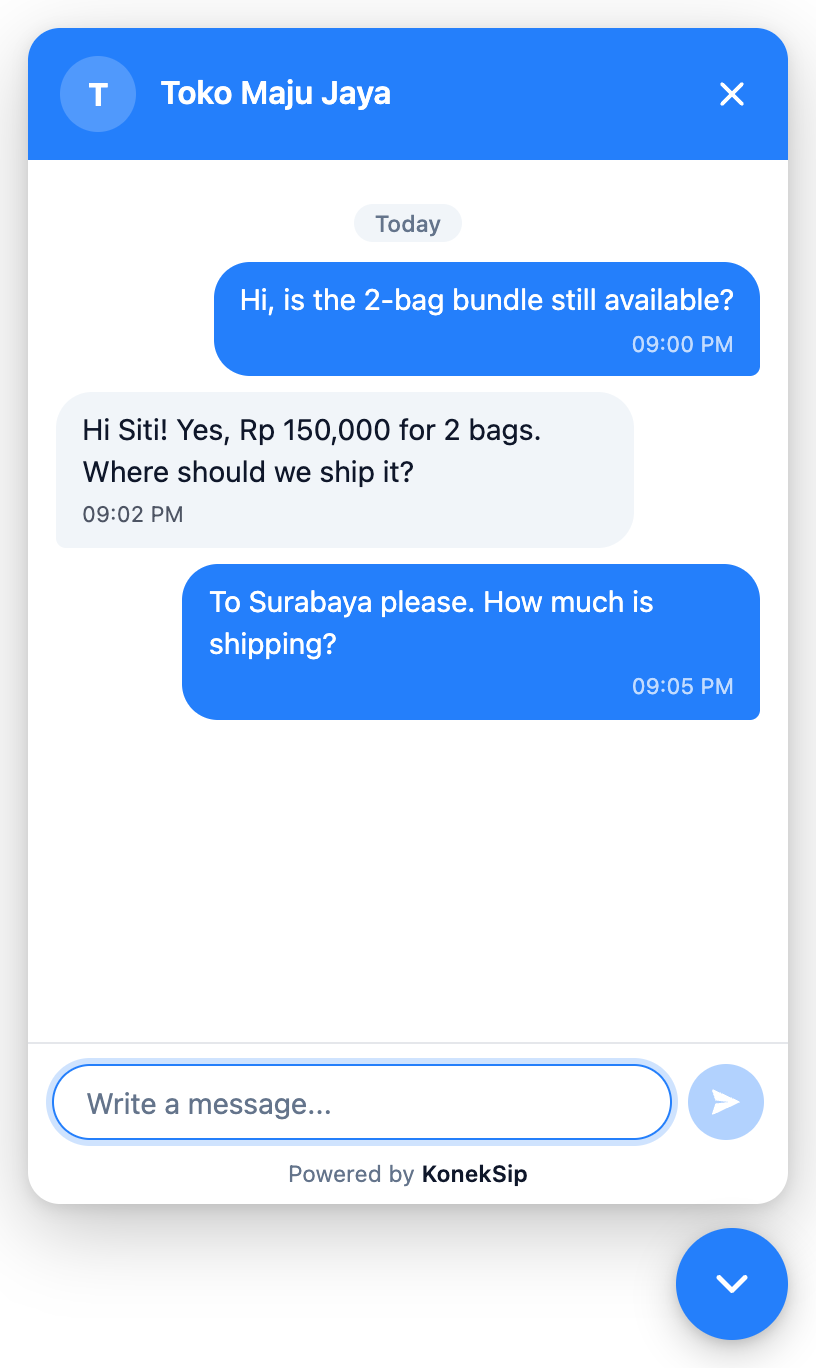


Mobile apps
There is no SDK to install. Open the chat page in the WebView of your Android, iOS, Flutter or React Native app:
https://<gateway>/webchat/embed?key=<site key>&app=<app id>The channel page shows this address with your site key already filled in. Put the id of your app in app (the application id on Android, the bundle id on iOS). To let only your own app chat, list that id under Allowed apps on the channel page; once you list websites or apps, only the listed ones can chat.
Optional parameters: name, email and sig when your app already knows the user (the form is skipped, see Logged-in users), lang (id or en), and close=1 to show a close button.
React Native (react-native-webview)
import { WebView } from 'react-native-webview';

<WebView
  source={{ uri: 'https://…/webchat/embed?key=…&app=com.example.shop' }}
  javaScriptEnabled
  domStorageEnabled
  onMessage={(e) => {
    const m = JSON.parse(e.nativeEvent.data);
    if (m.type === 'close') navigation.goBack();
  }}
/>
Flutter (webview_flutter)
final controller = WebViewController()
  ..setJavaScriptMode(JavaScriptMode.unrestricted)
  ..addJavaScriptChannel('KonekSip', onMessageReceived: (m) {
    // m.message is the JSON text
  })
  ..loadRequest(Uri.parse('https://…/webchat/embed?key=…&app=com.example.shop'));
Android (Kotlin)
webView.settings.javaScriptEnabled = true
webView.settings.domStorageEnabled = true
webView.addJavascriptInterface(object {
    @JavascriptInterface fun postMessage(json: String) { /* handle */ }
}, "KonekSip")
webView.loadUrl("https://…/webchat/embed?key=…&app=com.example.shop")
iOS (Swift)
let config = WKWebViewConfiguration()
config.userContentController.add(self, name: "KonekSip") // WKScriptMessageHandler, message.body is the JSON text
let web = WKWebView(frame: .zero, configuration: config)
web.load(URLRequest(url: URL(string: "https://…/webchat/embed?key=…&app=com.example.shop")!))
Turn on JavaScript and DOM storage in the WebView. Without storage the chat forgets the visitor every time the app opens.
The page tells your app what happens with a JSON message, {"source":"koneksip","type":"..."}: ready (the chat is loaded, with the id of the visitor), unread with a count (replies that came while the page was not visible), close (the close button was pressed) and refused (this app is not allowed, or the channel is off). Times follow the timezone of the phone.
Open the screen with the chat in your app and send a message: it appears in the Inbox. An Android app needs the INTERNET permission, which an app that uses the network already has.
Push notifications
A reply can only be seen while the chat page is open. To reach a phone that is locked or an app that is closed, send the notification from your own backend with the push provider you already use (Firebase, OneSignal, APNs). KonekSip does not hold your push keys.
- The
readymessage carries the id of the visitor:{"type":"ready","visitor":"..."}. Save it, with the push token of the device, in your own backend. - On the channel, open Webhook & API and enter the address of your backend.
- KonekSip sends a
message.sentevent for every reply. Whenvisitor_onlineisfalse, find the push token of the visitor intoand send the notification.
{
  "type": "message.sent",
  "data": {
    "to": "3f9c2a6e8b1d4570a9e2c4f6",
    "message": "Hi! Yes, it is still available.",
    "visitor_online": false
  }
}
Logged-in users
If the user is already signed in to your website or app, do not ask for their name and email again: pass them to the chat and the form is skipped.
Sign the email so that KonekSip believes it. Anyone can open a chat with your site key and type any address, so an email that is not signed never joins an existing customer; it gets a customer of its own. Make the signature on your own server with the secret shown on the channel page (HMAC SHA-256 of the email in lower case, as hex), and never put the secret in the page or the app, only the signature:
PHP
$signature = hash_hmac('sha256', strtolower($email), $secret);Node.js
const signature = crypto.createHmac('sha256', secret).update(email.toLowerCase()).digest('hex');Check your code with this example: with the secret my-secret and the email [email protected] the signature must be 3b97ef0298fdb02344b45a8faa68e8410adee057b1b2f5a1833cce5ff42b737b.
On a website
<script async
  src="https://…/webchat/widget.js"
  data-key="…"
  data-name="Budi Santoso"
  data-email="[email protected]"
  data-sig="<signature>"></script>
window.koneksipChat only exists once the script has loaded. When you know the user right away, give it in the tag as above. When you learn it later, call it from the onload of the script, or after the script has loaded:
<script async src="https://…/webchat/widget.js" data-key="…"
  onload="koneksipChat.identify({ name: 'Budi Santoso', email: '[email protected]', sig: '<signature>' })"></script>
When the user signs in or out while the page stays open, call:
window.koneksipChat.identify({ name: 'Budi Santoso', email: '[email protected]', sig: signature });
window.koneksipChat.reset(); // when the user signs out
In a mobile app
Add name, email and sig to the address of the chat page (URL-encode the values):
https://…/webchat/embed?key=…&app=com.example.shop&name=Budi%20Santoso&email=budi%40example.com&sig=<signature>A browser or a phone keeps the chat of one person. When another user signs in, or nobody is signed in, the chat starts with a new visitor, so nobody sees the chat of whoever used the device before.
Visitors and customers
- Each browser gets a random visitor ID, so the chat continues when the visitor comes back. A visitor who has not given a name shows as Visitor with four characters.
- When a visitor types a name and an email, KonekSip creates a customer for them. An email that your own server signed (see Logged-in users) joins the customer that already has it.
- An email typed by the visitor is not verified, so it never joins an existing customer. Do not share private account details because of it.
- If a visitor has left the page, your reply is kept and shown when the widget opens again.

What works
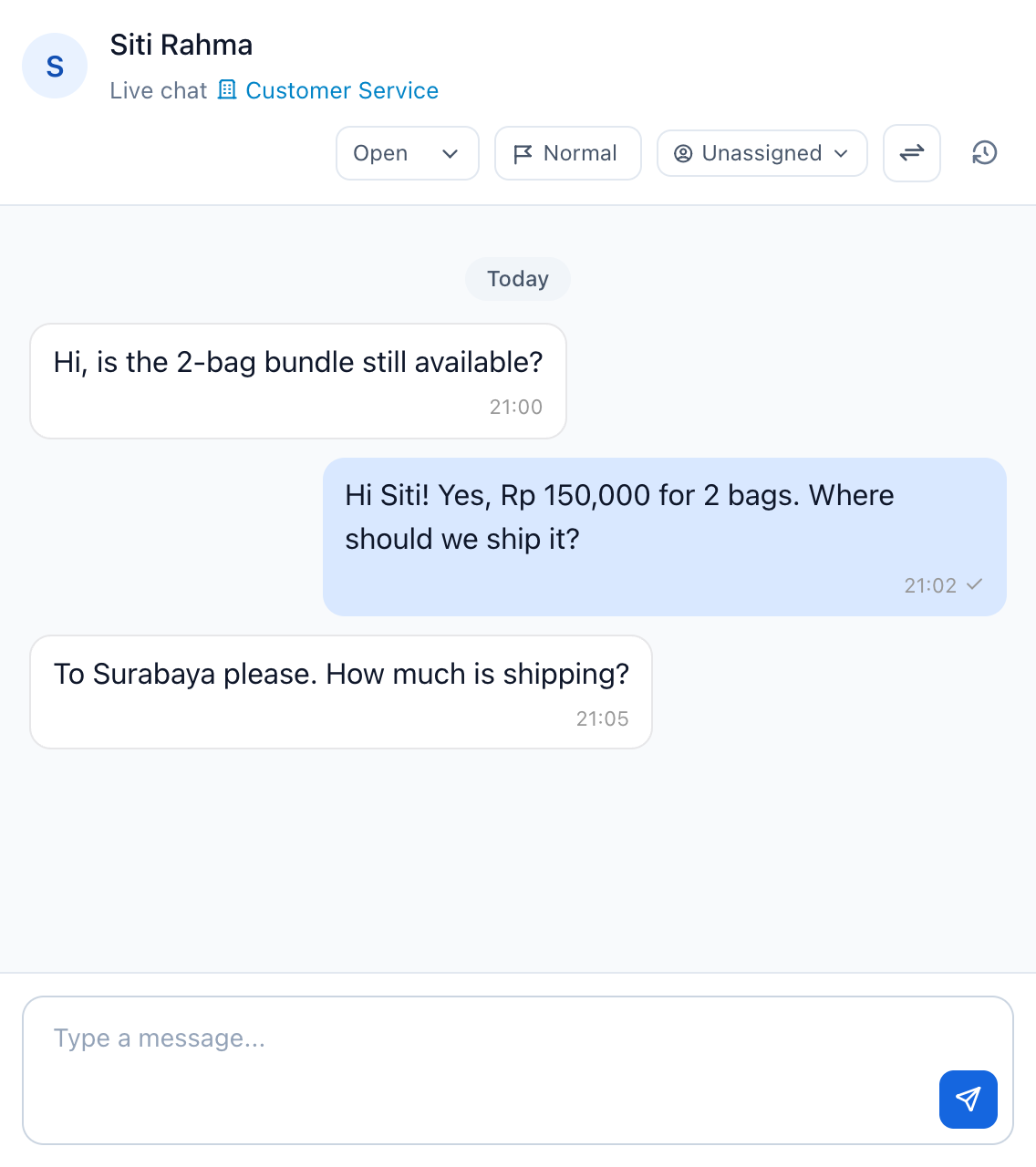
- Visitor chats arrive in the Inbox and can be assigned, given a priority and answered like any other conversation. Auto-replies, workflows and AI replies work too.
- Chat is text only: no images, files, typing indicator or read receipts.
- There is no 24-hour window: you can answer at any time, as long as the visitor opens the widget again to see it.
- Outside your business hours (Settings → Organization), the widget shows your after-hours message above the chat and the visitor also gets it as a reply, once every 12 hours. Campaigns, phonebooks and templates are WhatsApp only. The widget follows the language of the visitor's browser (Indonesian or English).
- To keep spam out, one address can start 30 new chats an hour and send 30 messages a minute. A visitor who goes over sees Too many messages with the seconds to wait, and can tap the message to send it again.
Troubleshooting
| What you see | Likely cause | What to do |
|---|---|---|
| The button does not appear | The code is missing or has no data-key, the website is not in Allowed websites, or the widget is switched off. | Paste the code from the channel page again, add the domain (or leave the list empty), and tick Show the widget on my website. |
| The button appears but messages are not sent | The connection to KonekSip was lost, or the visitor sent too many messages in a short time. | Wait a moment and try again. The widget says when it is disconnected. |
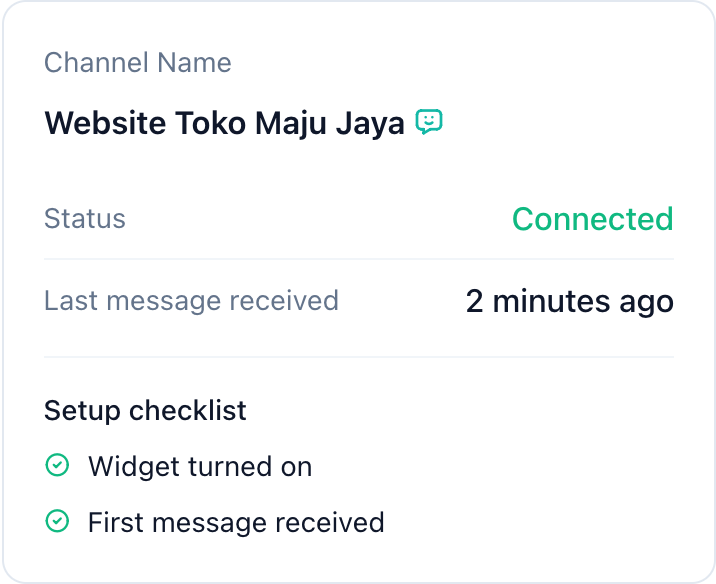
| Messages arrive but replies do not show | The visitor closed the page, or the channel was switched off. | The reply is shown when the widget opens again. Check that the channel status is Connected. |
| The widget loads but stays hidden | The domain is not allowed, or your plan no longer includes live chat. | Check Allowed websites and your plan. |
| Too many messages. Try again in N seconds. | More than 30 messages in a minute from one address, which includes everyone behind the same network. | Wait the seconds shown and tap the message to send it again. |
| The chat does not load and the browser console talks about a Content Security Policy | Your site blocks the script, the connection or the inline styles of the widget. | Allow the address of the chat server in script-src and connect-src (with wss://), and 'unsafe-inline' in style-src. |
In the app, no chat shows and the page sent refused | The id in app is not listed under Allowed apps, the key is wrong, or the channel is switched off. | Check the id and the key in the address, the Allowed apps list (websites and apps are listed separately) and that the channel status is Connected. |
| A signed-in user is asked for a name and email again, or becomes a separate customer | The name and email were not passed, or the signature is wrong, so the email is not believed. | Make the signature from the lower case email with the secret of this channel and compare it with the example in Logged-in users. A new secret makes older signatures invalid. |
| No push notification arrives | The webhook address is not set, visitor_online was true, or your backend does not know the visitor id. | Set the address under Webhook & API, send the push only when visitor_online is false, and save the visitor id from the ready message with the device token. |
Need Help?
If you have questions or need assistance, our support team is here to help.